
Send new discounts to Slack
Keep support aligned on every new discount
Use the Discount Created trigger to send new discount details to Slack the moment your marketing team creates a promotion in Shopify. This helps your support team see the code, status, and dates before the first customer asks about it.
This setup uses three parts:
- Workflow Trigger Extensions to detect when a discount is created
- Slack to receive the alert in a support channel
- Shopify Flow to pass the discount data to Slack
Video Guide
You can see this video guide of the whole process as well.
Before you start
- You have the Workflow Trigger Extensions app installed
- You have access to Shopify Flow
- You can create or edit a Slack workflow
- You know which Slack channel should receive discount alerts
Step 1: Grant discount access in Workflow Trigger Extensions
Open the app in Shopify admin and go to Home. In the Setup Guide, find Grant Discount Access and enable it.
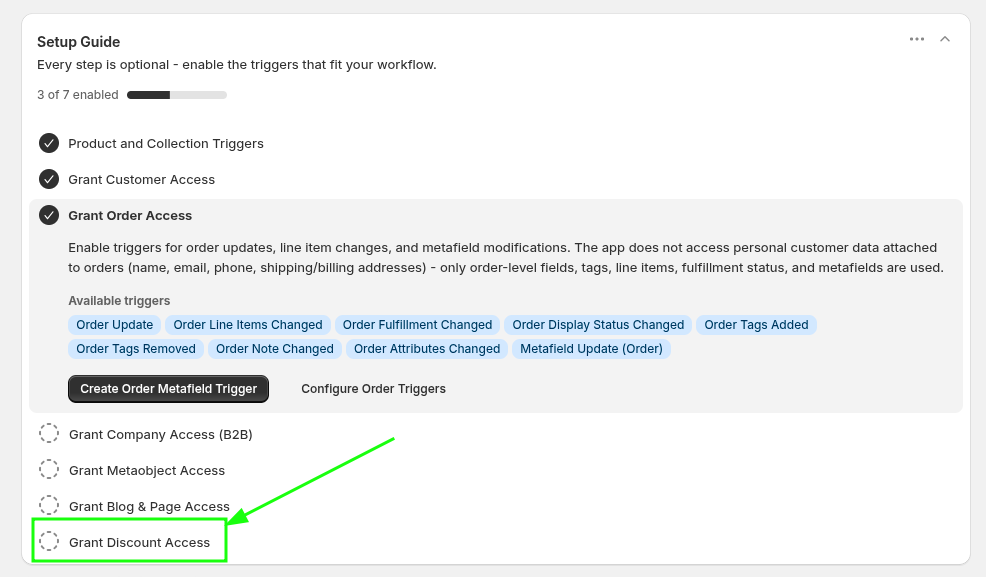
Once access is granted, the app can send discount creation events into Shopify Flow.
Step 2: Create a Slack workflow that starts from a webhook
In Slack, create a new workflow for these alerts.
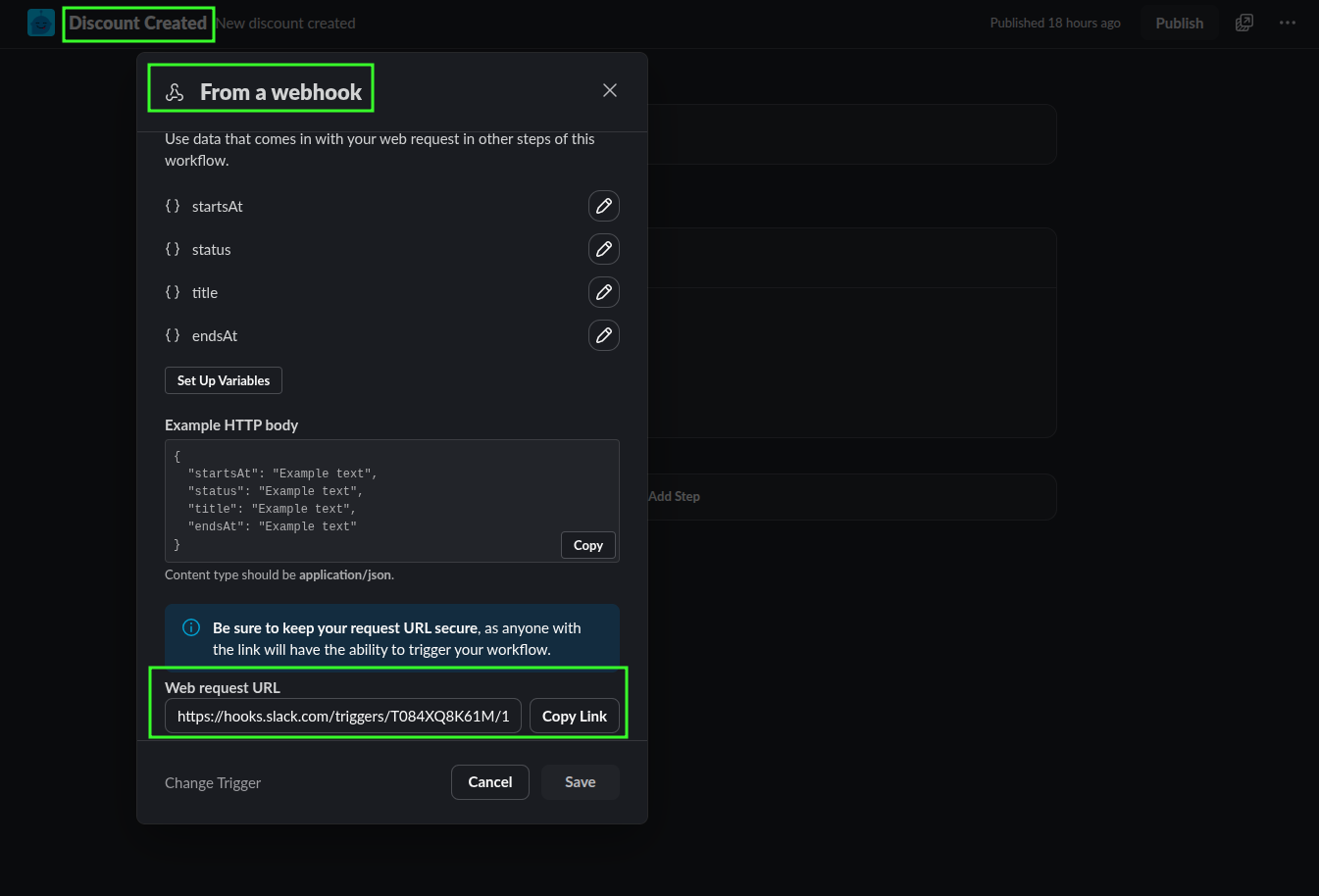
In Slack, create a workflow and give it a clear name such as Discount Created.
Select From a webhook as the workflow trigger.
Slack will generate a Web request URL. Copy this URL because Shopify Flow will send discount data to it.
Add a Send a message to a channel step and choose the support channel that should receive the notification.
Use the webhook variables in the Slack message so your team sees the most important details right away.
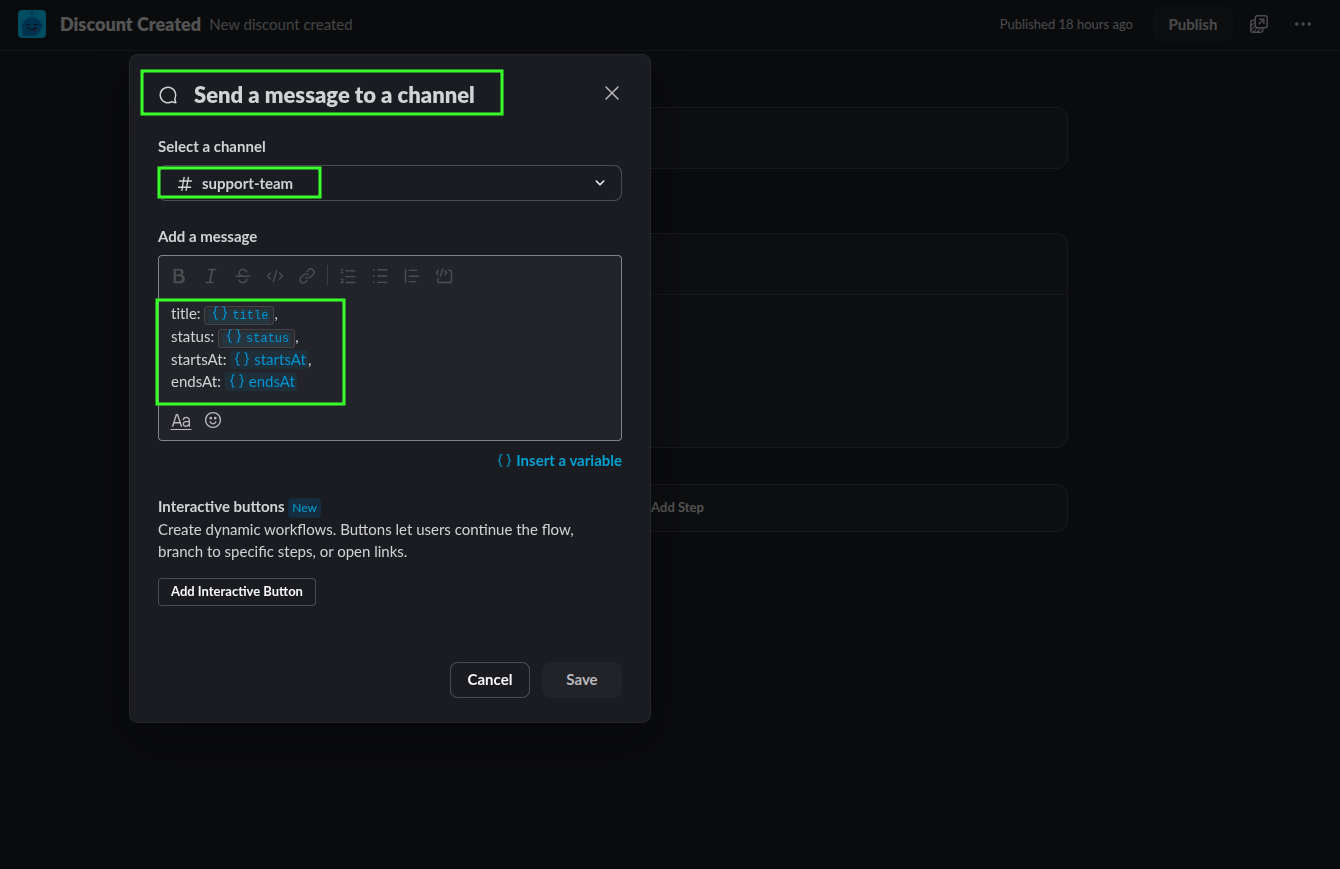
A simple Slack message can look like this:
New discount created
Title: {{title}}
Status: {{status}}
Starts at: {{startsAt}}
Ends at: {{endsAt}}Step 3: Send the discount data from Shopify Flow
Now build the Flow in Shopify so the new discount event sends data to the Slack webhook.
In Shopify Flow, create a workflow that starts with the Discount Created trigger from Workflow Trigger Extensions.
Send an HTTP POST request to the Slack webhook URL you copied in Slack.
Include the fields your support team needs, such as the discount title, status, created date, start date, and end date.
If you are on Shopify Basic and do not have Shopify Flow's native HTTP request option, you can use Flow Action Extensions to send the request instead.
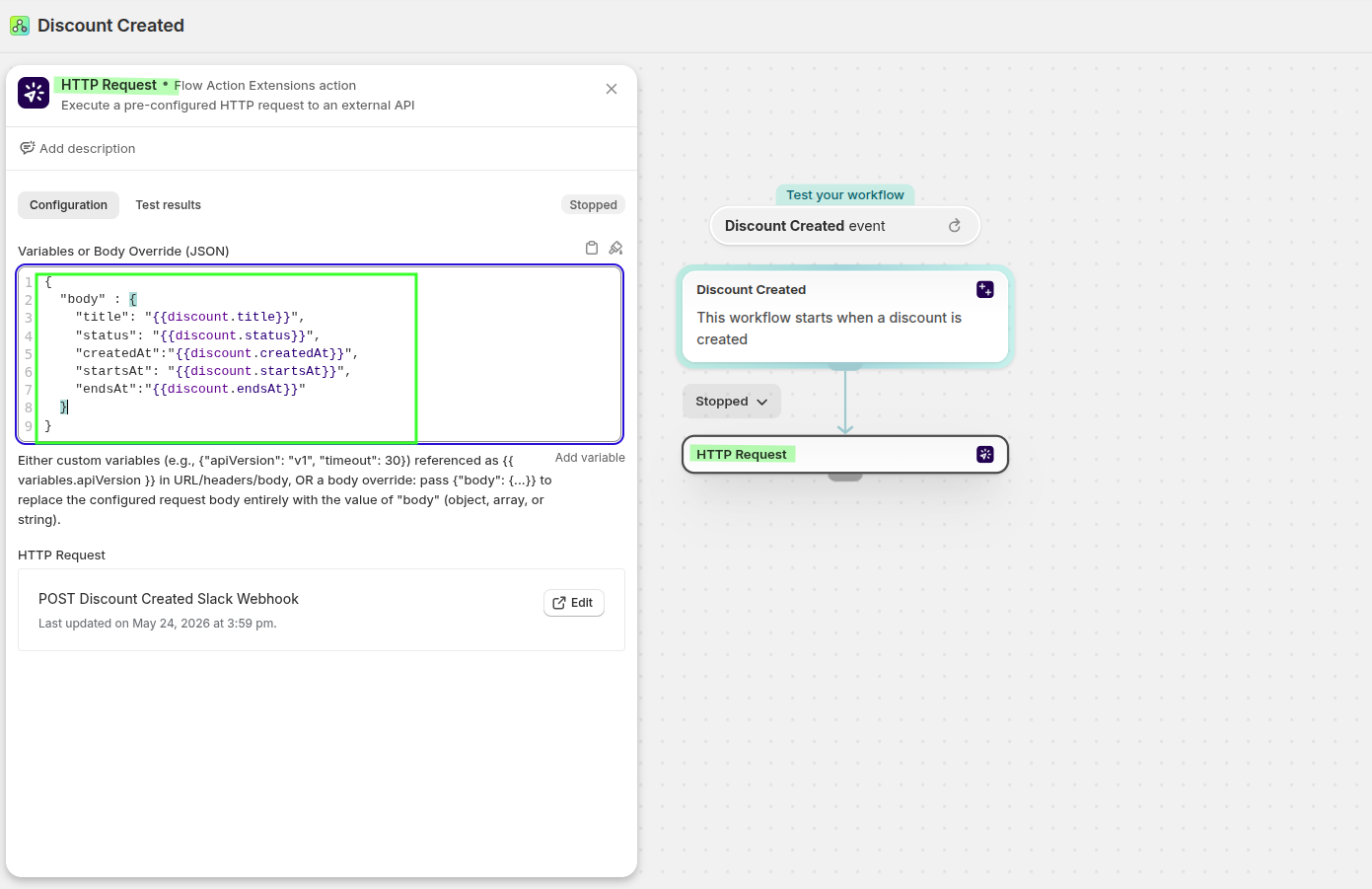
Example JSON body:
{
  "body": {
    "title": "{{discount.title}}",
    "status": "{{discount.status}}",
    "createdAt": "{{discount.createdAt}}",
    "startsAt": "{{discount.startsAt}}",
    "endsAt": "{{discount.endsAt}}"
  }
}
Step 4: Test the workflow
Create a new discount in Shopify admin to test the setup. When the discount is created:
- The Discount Created trigger should fire in Shopify Flow
- The HTTP request should send the payload to Slack
- Your selected Slack channel should receive the message
If the Slack message appears, your support team is now notified as soon as a new promotion is created.
Check the event payload in Workflow Trigger Extensions
You can also verify what data was captured by the trigger inside the app.
In Shopify admin, open Apps → Workflow Trigger Extensions → Event History. Open the discount event to review the payload.
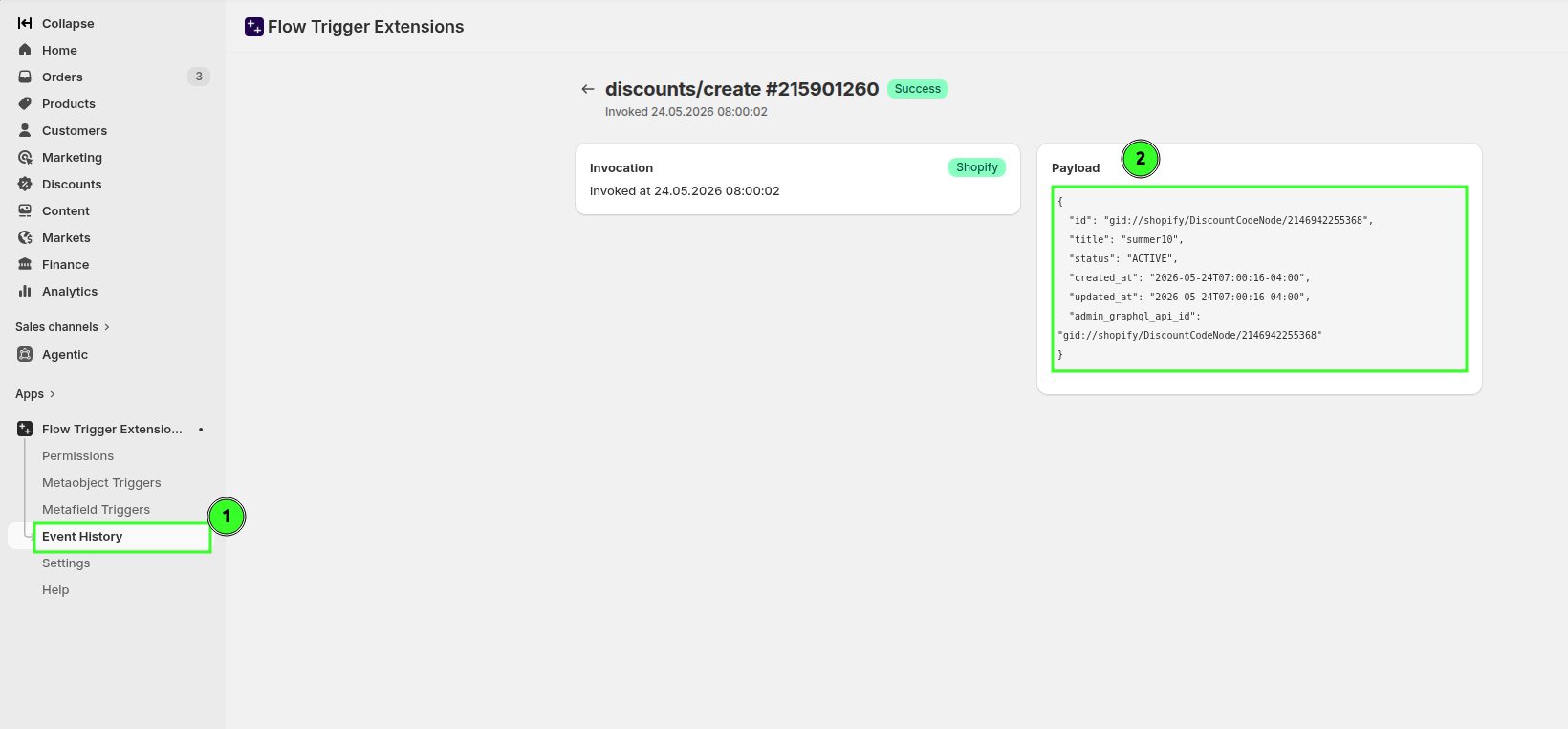
This is the fastest way to confirm the trigger captured the values you expect before troubleshooting Slack or Flow.
What your team gains
- Support sees new promo codes as soon as marketing creates them
- Agents can answer questions about timing and availability with confidence
- Your team avoids the disconnect that makes promotions feel uncoordinated
Related guides
Send follow-up actions when a discount reaches its end date.